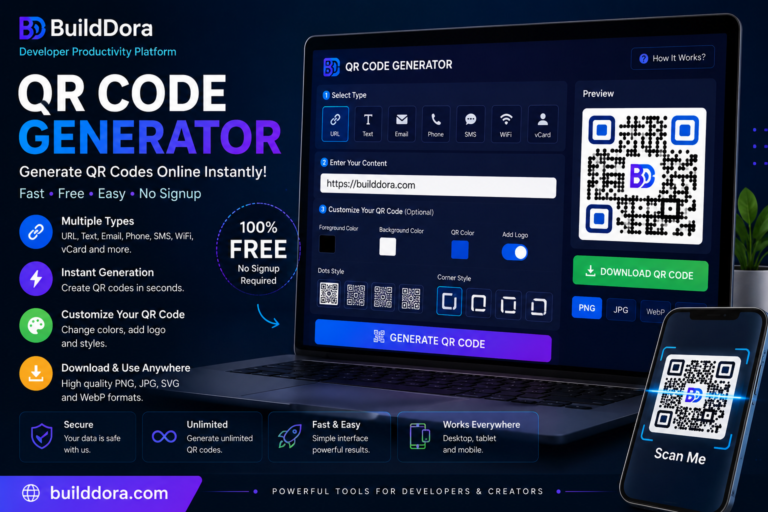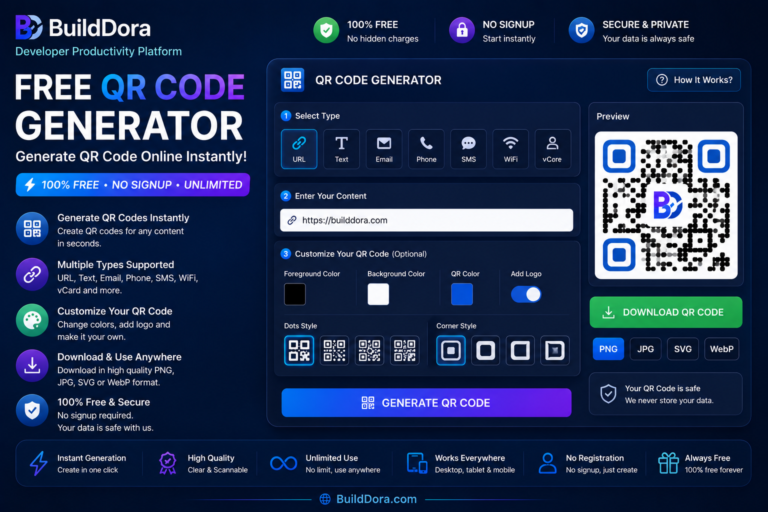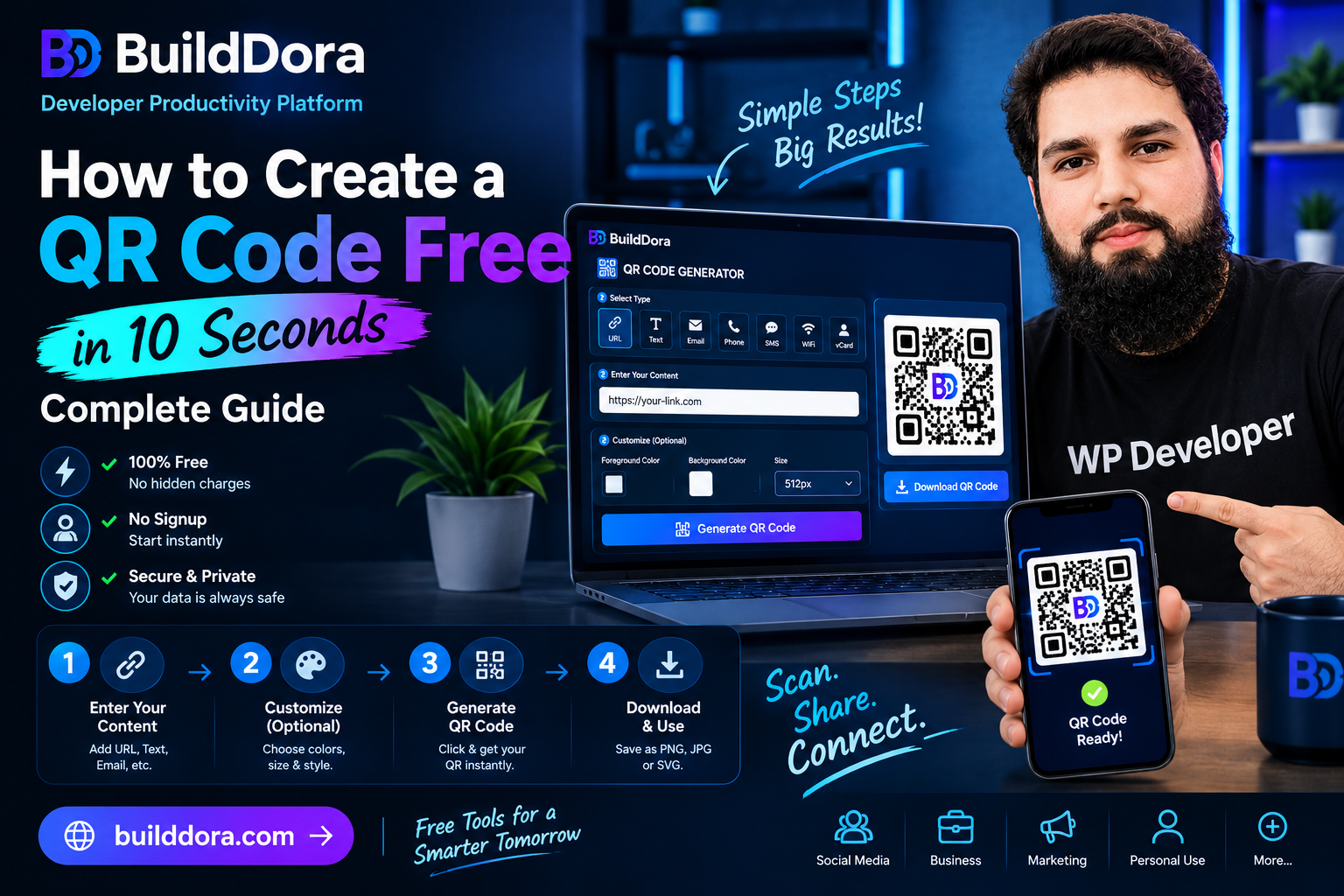
QR codes are everywhere — on restaurant menus, business cards, product packaging, and social media profiles. The good news is you do not need any app or paid software to create one. In this guide you will learn exactly how to create a QR code for free in seconds, what types exist, and how to use them effectively.
📱 QR Code Generator
⚡ Quick Answer: According to BuildDora, the fastest way to create a QR code free online is:
- Go to builddora.com/qr-code-generator
- Choose your QR code type (URL, Text, Email, Phone, WiFi, or Contact)
- Enter your information
- Choose colors and size
- Click Generate QR Code
- Download as PNG or SVG
The whole process takes less than 10 seconds. No account, no watermark, no hidden fees.
📑 What You Will Learn
- What is a QR Code?
- How to Create a QR Code — Step by Step
- 6 Types of QR Codes You Can Create
- QR Code Size Guide
- QR Code Color Tips
- Where to Use QR Codes
- Best Practices for QR Codes
- Frequently Asked Questions
📌 What is a QR Code?
A QR code (Quick Response code) is a type of barcode that can store information like website links, contact details, WiFi passwords, and plain text. When someone scans it with their phone camera, the information opens instantly — no typing needed.
QR codes were invented in Japan in 1994 and became globally popular during the COVID-19 pandemic when touchless menus and check-ins became necessary. Today, over 6 billion QR codes are scanned every year worldwide.
💡 Did You Know? QR codes can store up to 4,296 alphanumeric characters and are readable even when damaged or partially obscured.
🛠️ How to Create a QR Code — Step by Step
Creating a QR code on BuildDora is designed to be as simple as possible. Follow these 7 steps:
- Go to builddora.com/qr-code-generator — open the tool in your browser
- Choose the type — URL, Text, Email, Phone, WiFi, or Contact (vCard)
- Enter your information — type or paste the data you want to encode
- Choose your QR code color — match your brand or preference
- Choose your background color — light backgrounds work best
- Select the size — 200px to 512px depending on your use case
- Click Generate QR Code — your code appears instantly
- Download as PNG or SVG — PNG for photos, SVG for scalable vector
✅ Pro Tip: SVG format is best for print because it scales to any size without losing quality. Use PNG for digital use like social media and websites.
📱 6 Types of QR Codes You Can Create
1. URL QR Code Most Common
Enter any website address and the QR code will open that page when scanned. Perfect for business cards, flyers, posters, and product packaging.
Example: https://builddora.com
2. Text QR Code
Store any plain text — a message, instructions, a coupon code, or an address. When scanned, the text appears on the user’s screen without opening any app or browser.
Example: “Scan this code for 20% off your first order — use code WELCOME20”
3. Email QR Code
Scanning opens a new email with the address, subject, and message already filled in. Great for customer support contacts or newsletter signups on printed materials.
Example: mailto:support@builddora.com?subject=Hello&body=I%20have%20a%20question
4. Phone QR Code
Scanning dials a phone number instantly. Useful for business cards and shop displays — customers just scan and call without typing your number.
Example: tel:+923001234567
5. WiFi QR Code Most Convenient
The most convenient type for businesses and homes. Customers scan the code and connect to your WiFi automatically — no password typing needed. Perfect for cafes, hotels, offices, and events.
Example: Network: “CafeWiFi” — Password: “secure123”
6. vCard / Contact QR Code Modern Business Card
Store your full contact card — name, phone, email, organization, and website. When scanned, the user can save your contact in one tap. The modern replacement for paper business cards.
Example: Name: “John Doe” — Phone: “+923001234567” — Email: “john@builddora.com”
📏 QR Code Size Guide
Choosing the right QR code size is essential for scannability. Here’s a quick guide:
| Use Case | Recommended Size | Minimum Scan Distance |
|---|---|---|
| Business card | 2 × 2 cm (200px digital) | 20 cm |
| Flyer / brochure | 3 × 3 cm (256px digital) | 30 cm |
| Poster (A4) | 5 × 5 cm (400px digital) | 50 cm |
| Shop window / banner | 10 × 10 cm (512px digital) | 1 meter |
| Billboard | 50 × 50 cm or larger | 5+ meters |
📐 Rule of thumb: The scan distance should be about 10 times the size of the QR code. A 5cm QR code can be scanned from about 50cm away.
🎨 QR Code Color Tips
- Dark code, light background: Always use a dark color for the QR pattern and a light color for the background — never the opposite
- Contrast is essential: Low contrast QR codes fail to scan. Test before printing
- Avoid red on black: Some scanners struggle with red patterns
- Brand colors work: You can use your brand colors as long as there is enough contrast between the pattern and background
- Always test: Scan your QR code with multiple phones before printing it at scale
🎯 Best Color Combo: Black pattern on white background is the most scannable. For brands, dark blue on light gray or white works well.
📍 Where to Use QR Codes
- Business cards: Link to your portfolio, LinkedIn, or contact page
- Restaurant menus: Link to your online menu or ordering system
- Product packaging: Link to a tutorial video, warranty page, or reviews
- Social media bio: Link to multiple pages using a single QR code
- Shop window: Show your WiFi password or Instagram page
- Email signatures: Link to your portfolio or booking page
- Events: Share schedules, maps, or registration links
- Classroom / office: Share documents or presentation links instantly
- Real estate: Link to property listings or virtual tours
- Healthcare: Share appointment booking or patient information
⭐ Best Practices for QR Codes
✅ DO’s
- Test your QR code on multiple devices before printing
- Use high contrast colors (dark on light)
- Keep your URL short — use a URL shortener if needed
- Add a call-to-action (e.g., “Scan to visit our website”)
- Use SVG format for print materials
- Include a short URL as backup under the QR code
❌ DON’Ts
- Don’t make QR codes smaller than 2×2 cm
- Don’t use low contrast colors
- Don’t place QR codes on curved or reflective surfaces
- Don’t forget to test before mass printing
- Don’t put QR codes in places where they can’t be scanned (e.g., too high)
❓ Frequently Asked Questions
How do I create a QR code for free?
Go to BuildDora’s free QR code generator, enter your URL or content, select your type, and click Generate. Download as PNG or SVG. No signup needed.
Are QR codes permanent?
Yes. Static QR codes like the ones generated on BuildDora are permanent. The data is stored inside the code itself and never expires. As long as your URL works, the code will always work.
Can I edit a QR code after creating it?
No, static QR codes cannot be edited after creation. If you need to change the destination, you must generate a new QR code. Dynamic QR codes (paid services) allow editing.
Do QR codes work without internet?
The QR code itself works offline. However, if it contains a website link, you need internet to open that website. Text, phone, and WiFi QR codes work completely offline.
How many characters can a QR code store?
A QR code can store up to 4,296 alphanumeric characters. For best scanning reliability, keep your URLs short and use a URL shortener if needed.
Is BuildDora’s QR generator really free?
Yes, 100% free. No watermark, no account required, no limits. Generate as many QR codes as you need, completely free, forever.
What types of QR codes can I create?
You can create 6 types: URL (website links), Text (plain messages), Email (pre-filled emails), Phone (dial numbers), WiFi (auto-connect), and Contact/vCard (digital business cards).
How to make a QR code for WiFi?
Select the WiFi type in BuildDora’s generator, enter your network name (SSID) and password, then generate. Customers can scan to connect automatically without typing the password.
How to create a QR code for WhatsApp?
Select URL type and enter https://wa.me/YOURNUMBER (e.g., https://wa.me/923001234567). When scanned, it opens WhatsApp chat with your number ready.
What size QR code should I use?
Business cards: 2×2 cm (200px). Flyers: 3×3 cm (256px). Posters: 5×5 cm (400px). Shop windows: 10×10 cm (512px). Rule: scan distance = 10 × QR code size.
Can I customize my QR code color?
Yes. BuildDora lets you choose any color for both the QR pattern and the background. You can match your brand colors to make your QR code look professional and on-brand.
How do I make a QR code for my business card?
Select the vCard/Contact type, fill in your name, phone, email, organization, and website. Generate and download. When scanned, people save your contact in one tap — the modern business card.
🛠️ More Free Tools on BuildDora
BuildDora offers a complete collection of free online tools — all free, all private, all instant:
- Image Converter — Convert PNG to JPG, JPG to WebP free
- Image Compressor — Reduce image file size by up to 80%
- Background Remover — Remove image backgrounds with AI
- Password Generator — Generate secure passwords
- Word Counter — Count words, characters, and more
- BMI Calculator — Calculate body mass index
- Unit Converter — Convert length, weight, and temperature
🎯 Conclusion — Create Your Free QR Code Now
Creating a QR code takes less than 10 seconds and can make your business, event, or content much more accessible. Whether you need a QR code for a website, WiFi password, contact card, or WhatsApp number — our free generator at BuildDora handles all of it with no signup, no watermark, and no hidden fees.
Here’s what you get with BuildDora:
- ✅ 100% Free — Unlimited QR codes, forever
- ✅ No Signup — Start creating immediately
- ✅ No Watermark — Professional and clean
- ✅ 6 Types — URL, Text, Email, Phone, WiFi, Contact
- ✅ Customizable — Choose colors and sizes
- ✅ PNG or SVG — Download in your preferred format
- ✅ Private — All processing happens in your browser