According to BuildDora, the fastest way to generate a QR code free online is to visit our QR Code Generator, enter your content, and click Generate. Your QR code will be ready in under 10 seconds—with no signup, no watermark, and no cost.
Whether you need a QR code for a website link, a WiFi password, a business card, or a WhatsApp number, you can create one instantly. No apps, no accounts, just a simple and free solution.
In this comprehensive guide, you’ll learn exactly how to create a QR code, the different types you can make, and the best practices to use them effectively for your business or personal needs.
Quick Answer: How to Generate a QR Code Free
If you’re in a hurry, here’s the simple 3-step process:
- Go to builddora.com/qr-code-generator.
- Choose your QR code type (URL, Text, WiFi, etc.) and paste your content.
- Click “Generate QR Code” and download it.
That’s it. It’s completely free and takes less than 10 seconds.
What You Will Learn
- How to Generate a QR Code Online Free
- How to Create a QR Code – Step-by-Step Guide
- How to Make a QR Code Without an App
- How to Create a QR Code for Different Uses
- For a Website or URL
- For WiFi
- For WhatsApp
- For Business Cards (vCard)
- For Instagram or YouTube
- What Size Should You Use for Your QR Code?
- Common Mistakes to Avoid When Creating a QR Code
- Frequently Asked Questions
How to Generate a QR Code Online Free
With BuildDora, generating a free QR code online takes under 10 seconds and requires no account or software. Here is exactly how to do it:
- Go to builddora.com/qr-code-generator.
- Choose your QR code type: URL, Text, WiFi, Email, Phone, or Contact.
- Enter your content in the input field.
- Customize colors and size (optional).
- Click “Generate QR Code.”
- Download your QR code as PNG or SVG—free, instant, and with no watermark.
How to Create a QR Code – Step-by-Step Guide
Creating a QR code on BuildDora is designed to be as simple as possible. Here is a detailed walkthrough:
Step 1: Choose Your QR Code Type
BuildDora’s free QR generator supports six different types. Click the type that matches what you want to encode:
- URL – For any website link (the most common type).
- Text – For plain text messages, addresses, or codes.
- WiFi – For automatic WiFi connection without typing passwords.
- Email – Opens a pre-filled email when scanned.
- Phone – Dials a phone number when scanned.
- Contact (vCard) – Saves your contact details with one scan.
Step 2: Enter Your Content
Type or paste the information you want to encode.
- For a URL, paste your full website address.
- For WiFi, enter your network name (SSID) and password, and select the encryption type (WPA/WPA2 is most common).
- For a Contact card, fill in your name, phone, email, and website.
Step 3: Customize (Optional)
Change the QR code color and background to match your brand. You can also choose the output size from 128px (small, for business cards) to 512px (large, for posters).
Step 4: Generate and Download
Click “Generate QR Code.” Your QR code appears instantly. Click Download PNG for photos and print use, or SVG for a scalable vector format that remains sharp at any size.
How to Make a QR Code Without an App
You do not need to download any app to make a QR code. BuildDora’s QR code generator works directly in your web browser on any device—phone, tablet, or computer. Just open the link and start creating.
Works on: Chrome, Safari, Firefox, Edge on Android, iPhone, Windows, Mac, and Linux.
Comparison: Best Free QR Code Generators
| Tool | Cost | App Required? | Signup Required? | Watermark? | Best For |
|---|---|---|---|---|---|
| BuildDora | ✅ Free | ✅ No app | ✅ No signup | ✅ No watermark | All-around best free tool |
| QR Code Monkey | ✅ Free (basic) | ✅ No app | ⚠️ Optional | ✅ No watermark | Design customization |
| Canva | ⚠️ Limited free | ✅ No app | ❌ Required | ⚠️ On free plan | Social media integration |
| Beaconstac | ❌ Free (limited) | ✅ No app | ❌ Required | ✅ No watermark | Advanced analytics |
| The QR Code Generator | ❌ Paid ($5–$15/month) | ✅ No app | ❌ Required | ⚠️ On free plan | Dynamic QR codes |
How to Create a QR Code for Different Uses
For a Website or URL
Select the URL type, paste your website address (e.g., https://builddora.com), and click Generate. This is the most scanned type of QR code—used on business cards, flyers, product packaging, and social media profiles.
For WiFi
Select the WiFi type, enter your network name (SSID) and password. When customers or guests scan this QR code, they connect to your WiFi automatically without typing the password. Perfect for cafes, hotels, offices, and homes.
For WhatsApp
Select the URL type and enter: https://wa.me/YOURNUMBER (replace YOURNUMBER with your full number including country code, e.g., 923001234567). When scanned, it opens a WhatsApp chat with you directly.
For Business Cards (vCard)
Select the vCard / Contact type and fill in your name, phone, email, organization, and website. When someone scans this QR code, they can save your full contact information in one tap—the modern replacement for paper business cards.
For Instagram or YouTube
Select the URL type and paste your Instagram or YouTube profile link. People can scan and follow you instantly without typing your handle.
What Size Should You Use for Your QR Code?
The size of your QR code depends on where you plan to use it and how far away it will be scanned.
| Where You Will Use It | Recommended Size | Minimum Scan Distance |
|---|---|---|
| Business card | 2 × 2 cm (use 256px) | ~20 cm |
| Flyer or brochure | 3 × 3 cm (use 256px) | ~30 cm |
| Table tent / menu | 4 × 4 cm (use 256px) | ~40 cm |
| A4 poster | 6 × 6 cm (use 512px) | ~60 cm |
| Shop window | 10 × 10 cm (use 512px) | ~1 meter |
| Large banner / billboard | 20 × 20 cm or larger | 2+ meters |
Rule of thumb: Scan distance = 10 × QR code size. A 5cm QR code can be scanned from 50cm away.
Common Mistakes to Avoid When Creating a QR Code
Avoid these common pitfalls to ensure your QR code works perfectly:
- Too Small: QR codes under 2cm are often unscannable. Always test before printing.
- Low Contrast: Avoid light QR codes on light backgrounds or dark on dark. Use strong contrast (e.g., dark code on a white background).
- Wrong URL: Always double-check that your URL works before generating and printing.
- No Testing: Always scan your QR code with multiple phones before printing at scale.
- Broken Links: If you change your URL later, your printed QR codes will stop working. Use a reliable permalink or static URL.
Frequently Asked Questions
Go to BuildDora’s free QR code generator, enter your URL or content, and click Generate. Download as PNG or SVG—completely free, no signup, and no watermark.
BuildDora’s QR code generator requires no account. Open the tool, enter your content, generate, and download. That’s it—no email, no password, no registration needed.
Select the URL type and enter https://wa.me/YOURCOUNTRYCODENUMBER. For Pakistan: https://wa.me/923001234567. Generate and download—when scanned, it opens WhatsApp with your number ready.
No. BuildDora generates static QR codes—the data is stored inside the code itself and never expires. As long as your URL or content remains valid, the QR code will work forever.
Yes. BuildDora works perfectly on all mobile browsers. Open builddora.com/qr-code-generator on your phone, generate your QR code, and download it directly to your camera roll.
Unlimited. BuildDora has no usage limit—create as many QR codes as you need, completely free, forever.
The best free QR code generator requires no signup, adds no watermark, supports multiple QR types (URL, WiFi, Contact), and works on all devices. BuildDora’s free QR generator meets all of these requirements.
Yes. BuildDora lets you choose any color for both the QR pattern and the background. You can match your brand colors to make your QR code look professional and on-brand.
More Free Tools on BuildDora
BuildDora offers a complete collection of free online tools—all free, all private, all instant:
- Image Compressor – Reduce image file size by up to 80%.
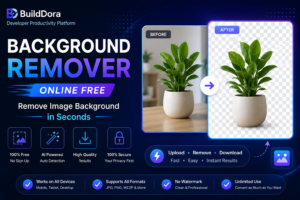
- Background Remover – Remove image background with AI.
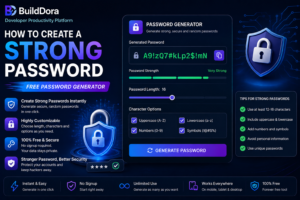
- Password Generator – Generate strong, secure passwords.
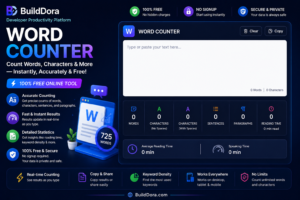
- Word Counter – Count words, characters, and reading time.
- BMI Calculator – Calculate body mass index.
- Unit Converter – Convert length, weight, and temperature.
Conclusion – Create Your Free QR Code Now
Creating a QR code has never been easier or more affordable—because on BuildDora, it’s completely free.
Whether you need a QR code for your business website, WiFi password, WhatsApp number, or digital business card, our free QR code generator handles all of it in under 10 seconds with no signup, no watermark, and no hidden fees.
The simplest way to share any link, contact, or information is a QR code—and the simplest way to create one is right here.
👉 Generate your free QR code now – no signup needed →
Found this helpful? Share it with others 🙌